USB Camera
- 2.9
- Rating
- 5.00M
- Installs
- Free
- Price

 Analysis by App-foxy
USB Camera is the kind of Android video tool that looks very simple at first, but its usefulness depends heavily on the equipment you connect to it and the job you want it to do. I approached it as a practical way to bring an external camera into a phone or tablet, rather than as a full editing suite or a polished social-video creator. That distinction matters: the app can be convenient when your device recognizes an EasyCap or UVC camera, yet it can also feel limited if you expect the smooth setup and automatic compatibility of a modern built-in camera app.
Developed by 沈垚 / ShenYao China, it sits in the video players and editors category and is available free of charge for everyone. Its long presence on Android, beginning in April 2016, helps explain why it has attracted more than five million installs. At the same time, its average rating of 2.9 from roughly eighteen thousand ratings shows that the experience is not equally reliable for every user. I think that contrast tells you more than the download figure alone: there is a real use case here, but success depends on the phone, adapter, camera, cable, and intended workflow.
What the first week with USB Camera feels like
The initial appeal is clear if you already own a compatible USB camera or EasyCap device. Instead of treating the phone as a closed camera system, the app gives you a route to use an external video source for recording or broadcasting video and audio. That can be useful for a temporary setup, a basic monitoring arrangement, or capturing footage from equipment that does not have a convenient mobile app of its own.
You May Also Like

 Blood Strike: 2.5 Anniversary
Blood Strike’s Loadouts Turn Every Drop Into a Tactical Gamble
A close look at Blood Strike’s custom loadouts: how fast access to signature weapons reshapes its battle royale rhythm, rewards preparation, and narrows the gap between fights.

 Pandora - Music & Podcasts
Pandora’s Music Is Easy to Start, but Harder to Recover
Pandora’s strength is its low-effort path from a seed to a station. Its weak spot is how much confidence it asks you to place in connection, setup, and quiet recovery.

 8 Ball Pool
 Is Built on Rivalries, Rematches, and Routine
A close look at the rivalries, rematches, shared routines, and unanswered safety questions that turn a quick pool match into a persistent mobile community.

 Samsung Music
’s Quiet Strength Is Playing What You Already Own
Its reach comes less from spectacle than from dependable access to a personal library. That simplicity is both the app’s strongest retention engine and its ceiling.

 AccuWeather: Weather Radar
AccuWeather Review: A Quick, Clear Forecast for Everyday Decisions
For everyday plans, the best forecast is the one you can understand quickly. AccuWeather makes rain timing, radar, and local conditions easy to act on, with a few trade-offs.

 Hill Climb Racing
Why Hill Climb Racing Still Turns Crashes Into One More Run
A tiny car, a bumpy hill and one more upgrade: Hill Climb Racing keeps resurfacing because its simple chaos makes every near-miss feel personal.
More From Our News Desk



My first recommendation is to test the complete chain before planning anything important. The app is only one part of the setup. The phone must support the connection, the adapter must fit correctly, the external device must be recognized, and the camera or capture hardware must deliver a signal the app can use. A USB-C connector alone does not guarantee that everything will work. This is the first important trade-off: the app may be free, but a working setup can still depend on accessories you already have or need to obtain.
When the connection succeeds, the appeal is practical rather than flashy. USB Camera is not trying to turn a basic external feed into a cinematic production. Its value is that it can make a phone act as a viewing, recording, or broadcasting endpoint for a USB source. For a user who needs that bridge, the straightforward approach is more useful than a crowded interface filled with creative effects.
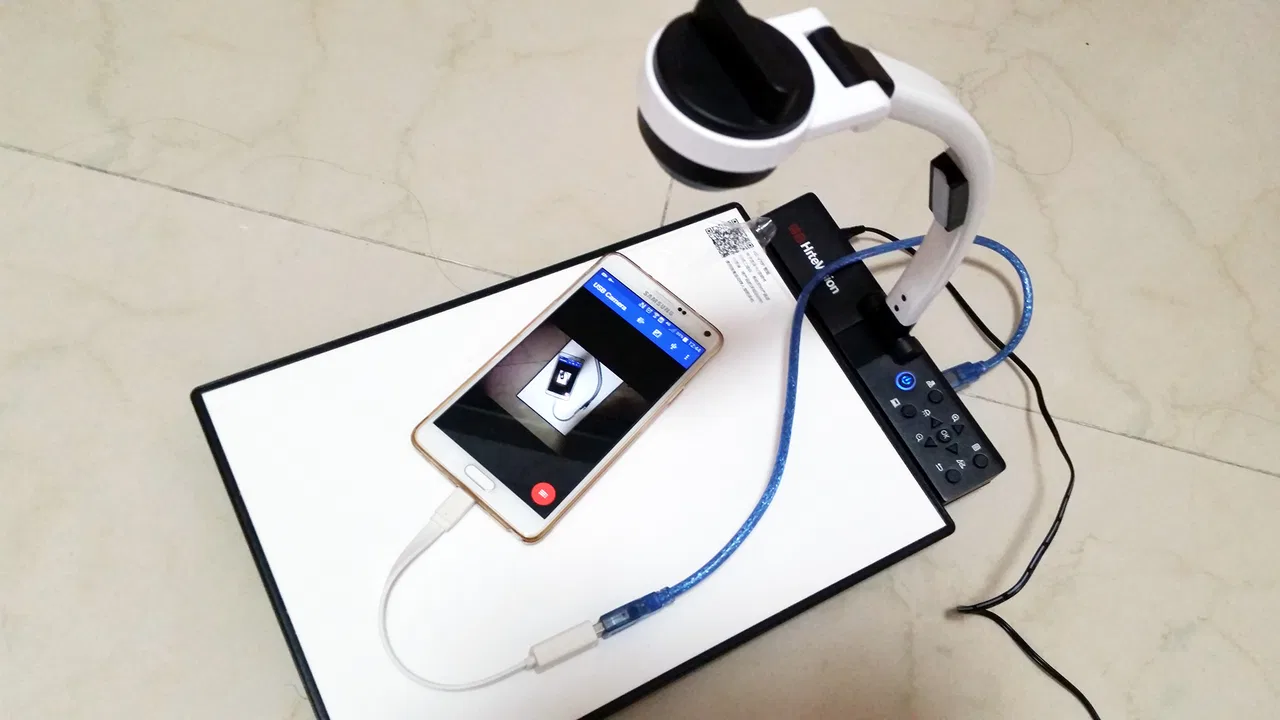
A realistic everyday example would be a small seller who wants to show a product from a fixed overhead camera during a live demonstration. The phone can be positioned away from the work surface while the USB camera points down at the item. Another example is a student using a capture device to bring a document camera or older video source into a mobile workflow. In both cases, the important benefit is not entertainment; it is changing the camera position and source without replacing the whole device.
The first week is also when the app’s limitations become visible. If you are used to opening a standard camera app and immediately taking a picture, this feels more technical. You need to think about cables, adapters, power, camera recognition, and the destination for the video. Troubleshooting is part of the experience, not an unusual exception. I would not install it five minutes before a presentation or broadcast and assume everything will be ready.
Compatibility is the real starting point
The phrase “USB camera” covers many types of hardware, so I would treat compatibility as a hands-on test rather than an assumption. EasyCap devices and UVC cameras can behave differently, and even devices that appear similar may produce different results on different Android hardware. The safest method is to connect the exact camera and adapter you plan to use, open the app, and test a short recording before relying on it.
That short recording should include the situations you care about: movement, speech, quiet audio, bright light, and a longer continuous run. A feed that appears correctly for a few seconds is not necessarily ready for a full session. Testing early also helps separate an app problem from a cable or camera problem. If another camera app cannot see the source either, the issue may be lower in the connection chain rather than inside USB Camera.
One useful habit is to label your working setup. Keep the known-good adapter, cable, and camera together instead of mixing them with similar accessories. This sounds minor, but external video workflows often fail because a familiar-looking cable or hub is substituted at the last minute. The app cannot compensate for an unstable physical connection, so organization becomes part of getting consistent results.
Recording and broadcasting require different preparation
Recording locally is usually easier to manage because you can stop, inspect the result, and try again. Broadcasting adds more pressure: the connection must remain stable, the audio must stay usable, and the phone must maintain the session without becoming a distraction. I would begin with short private tests and watch the resulting file or stream carefully rather than judging only by the live preview.
Audio deserves special attention. A video feed can look acceptable while the sound is too quiet, delayed, or coming from an unexpected source. If your project depends on spoken explanations, test the microphone arrangement separately. Keep the first broadcast simple, with one camera and one clear audio path, because adding extra hardware makes it harder to identify where a problem started.
The app’s store summary specifically presents it as a way to record and broadcast video and audio streams, so those are its central jobs. I would not treat that wording as a promise that every camera, capture device, broadcast destination, or phone combination will behave identically. The practical lesson is to verify the entire workflow, including the final audience view, before using it for something that cannot be repeated.
Whether it earns a place after the novelty fades
The first-week curiosity of connecting an unusual camera is not enough to make an app a permanent tool. For USB Camera to remain installed, you need a recurring reason to use an external source. That might be a fixed camera position, a legacy video device, a capture workflow, or a broadcast routine that is genuinely easier with a phone than with a computer. Without one of those habits, the app may become something you open once, confirm that it works, and then forget.
For recurring use, I see the strongest value in repeatable setups. If the same camera stays attached to the same stand and the phone is used in the same location, the app can become part of a simple routine. You can prepare the cable path, mark the camera position, and keep the phone charged before each session. The less often you rebuild the arrangement, the more likely the app is to feel useful rather than troublesome.
There is also a good case for occasional users who need a specialized bridge. You may not need USB Camera every day, but it can still justify its place if it solves a problem that the built-in camera cannot. A person who periodically digitizes or monitors an external source may prefer keeping a known tool ready instead of searching for a replacement whenever the need returns.
On the other hand, users whose main goal is polished social content will probably find the usual dedicated camera, editing, or streaming alternatives more comfortable. Those apps commonly focus on guided capture, templates, effects, automatic adjustments, and sharing. USB Camera’s appeal is narrower: it is about accepting an external USB video source. If you do not need that source, the app’s central advantage disappears.
The practical difference from ordinary camera apps
A normal phone camera app is designed around the cameras already built into the handset. It usually offers a familiar preview, quick switching, and a workflow that assumes the phone itself is the camera. USB Camera changes that assumption. Its purpose is closer to an adapter between external hardware and mobile video work.
That makes it more flexible in one specific direction and less convenient in almost every general-purpose situation. You gain the possibility of using a camera placed elsewhere or a capture device that would otherwise be difficult to access from the phone. You lose the simplicity of opening the default camera and trusting that the hardware is already understood.
Compared with desktop capture software, the app is attractive when portability matters. A phone can be easier to position in a small room or carry to a temporary setup. A computer-based workflow is often better when you need detailed scene control, multiple sources, advanced audio routing, or extensive monitoring. I would choose USB Camera for a focused mobile connection, not as a replacement for a full production workstation.
Compared with a dedicated streaming application, it also has a different priority. A streaming app may make publishing easier, while USB Camera addresses the question of how to get an external feed into the mobile device in the first place. Depending on your setup, you may use it as one part of a larger process rather than expecting it to provide every production feature.
Small workflow choices that improve reliability
One of the most useful habits is to separate setup testing from content testing. First confirm that the phone sees the external device and that the preview remains stable. Then test the actual recording or broadcast with the lighting, movement, and audio you expect. This two-stage approach prevents you from wasting time diagnosing a cable issue while also trying to improve your presentation.
Another helpful choice is to keep the phone physically still once the external camera is positioned. Moving the phone can tug on the adapter or cable, and a stable camera feed is not much help if the connection is disturbed by the handset being handled. For a fixed demonstration, I would prepare the phone like a small appliance: place it, connect it, start the app, and avoid unnecessary interaction during the session.
For longer use, I would also make a short checklist: camera connected, adapter secure, audio tested, storage ready, phone charged, and a sample recording reviewed. This is not glamorous, but it addresses the most common source of frustration with accessory-based video. The app may be ready while the physical setup is not.
A less obvious trade-off is that an external camera can improve framing while making troubleshooting harder. You may gain a better angle or a more useful position, but every additional connection creates another possible failure point. I would only accept that complexity when the camera position or source genuinely improves the result.
Maintenance becomes part of the product experience
With a built-in camera app, maintenance is mostly software-related. With USB Camera, maintenance includes the hardware arrangement. Cables get moved, adapters get misplaced, capture devices may need reconnecting, and a setup that worked in one room may be awkward in another. The app is therefore best judged as part of a small system rather than in isolation.
I would store the working accessories together and avoid changing several components at once. If the feed stops working, reconnect one item at a time and repeat the short test. Changing the camera, adapter, cable, and phone position simultaneously removes the clues that would tell you what caused the failure.
It is also sensible to review a sample recording after any major change to the setup. A new cable may restore the picture but alter the stability of the connection. A different camera position may improve the image while making speech harder to hear. Checking the final result keeps you from trusting a preview that does not represent the finished experience.
The maintenance burden is acceptable for a hobbyist or technically comfortable user who enjoys a repeatable setup. It is less attractive for someone who wants an appliance-like experience. If your work depends on starting instantly with no time for testing, the extra hardware layer may outweigh the app’s free price.
Where long-term fatigue comes from
The biggest source of fatigue is uncertainty. Even when the app itself is easy to open, you may still wonder whether the phone will recognize the camera, whether the adapter is seated properly, whether audio is arriving from the intended source, and whether the connection will hold for the whole session. Repeating that uncertainty every time can make a useful tool feel tiring.
Another source is the gap between what the app does and what users may expect from the word “camera.” USB Camera is not automatically a replacement for a complete mobile filming environment. If you want extensive editing, creative filters, automatic publishing, or a highly polished creator workflow, you may spend more time working around the app than using its core strength.
The modest average rating of 2.9, based on about eighteen thousand ratings, is a useful warning to keep expectations realistic. It does not make the app worthless, but it suggests that the experience can be uneven across devices and setups. I would interpret the rating as a reason to test your exact equipment, not as a verdict that every user will have the same result.
There is also a psychological cost to a tool that is used only occasionally. If you have to remember which adapter works, where the camera is stored, and how the cable must be arranged each time, the app may gradually lose its place in your routine. A simple written checklist or a permanently assembled setup can reduce that friction considerably.
Users should skip this app when their only goal is taking ordinary photos or videos with the phone’s built-in camera. They should also look elsewhere if they need a dependable professional production environment with extensive controls and a predictable multi-source workflow. In those cases, a native camera app or desktop software is likely to be a better match.
I would consider it a better fit for students, hobbyists, demonstrators, and mobile broadcasters who already own compatible USB hardware and specifically need to use it with an Android device. The free price makes experimentation easy, and the Everyone age rating keeps it broadly accessible, but free installation does not remove the need for compatible equipment and patient testing.
My long-term verdict
After the novelty fades, USB Camera earns lasting space only when it solves a repeated external-camera problem. I would keep it installed for a known workflow involving an EasyCap or UVC device, especially if the phone’s portability is important and the setup can remain organized. In that situation, its narrow purpose becomes a strength: it does one unusual job that ordinary camera apps are not built around.
I would not recommend it as a universal video app. Its value is conditional, and the surrounding hardware can determine the experience as much as the software. The app’s history, free availability, and more than five million installs show that many people have found a reason to try it, but the lower average rating reminds me not to promise effortless compatibility.
My honest advice is to install it only with a specific external camera task in mind. Test a short recording, check the audio, repeat the test with the accessories you will actually use, and decide whether the saved time outweighs the setup work. If it does, USB Camera is a practical bridge between Android and external video hardware. If it does not, the default camera or a more specialized streaming and editing tool will probably give you a smoother long-term habit.
FAQs for USB Camera
01What is USB Camera, and what can I use it for?
USB Camera is an Android app designed to display and record video from compatible external USB webcams, endoscopes, microscopes, and other UVC devices. After connecting the camera through a suitable USB OTG adapter, the app can provide a live preview and may offer tools such as photo capture, video recording, snapshots, and basic image controls. Its usefulness depends on your phone, Android version, and connected hardware.
02Does USB Camera work with every Android phone and USB webcam?
No. Compatibility depends on whether your phone supports USB OTG and whether the connected camera uses a supported USB Video Class, or UVC, standard. Some phones may require an OTG adapter, additional power, or permission to access the USB device. Certain webcams, specialized cameras, and older devices may not work correctly, so checking your phone’s OTG support and the camera’s specifications before downloading is recommended.
03What permissions and accessories does USB Camera require?
The app normally needs permission to access the connected USB camera and may request storage or media access if you save photos and recordings on the device. You will also need a compatible USB OTG adapter or hub. If the external camera consumes significant power, a powered hub may be necessary. Always use a reliable adapter, because poor-quality accessories can cause disconnects or unstable video.
04Can I record videos and take photos with USB Camera?
USB Camera generally supports capturing still images and recording video from a connected external camera, although the available resolution, frame rate, audio options, and file formats can vary by device and app version. The final quality is primarily determined by the USB camera itself. Before important recordings, test the save location, available storage, image orientation, and whether audio is supported by your particular setup.
05Is USB Camera suitable for professional surveillance or long-term monitoring?
USB Camera can be useful for occasional viewing, inspections, demonstrations, document work, or basic monitoring, but it should not automatically be considered a complete professional security system. Long sessions may drain the phone battery, generate heat, require continuous power, and depend on a stable USB connection. Users should also review privacy and local recording laws before monitoring people or sensitive areas.
Pros
- Works with many USB webcams and Android devices via OTG.
- Provides a simple way to preview an external camera feed.
- Useful for phones with damaged or low-quality built-in cameras.
- Can support camera setups for streaming
- monitoring
- or video calls.
- Lightweight interface makes basic camera access easy to understand.
Cons
- An OTG adapter and compatible USB camera may be required.
- Compatibility can vary between phone models and Android versions.
- Some advanced webcam controls may not be available.
- Video quality depends heavily on the connected camera and USB connection.
- Extended use can increase battery drain and device temperature.

USB Camera
Gallery